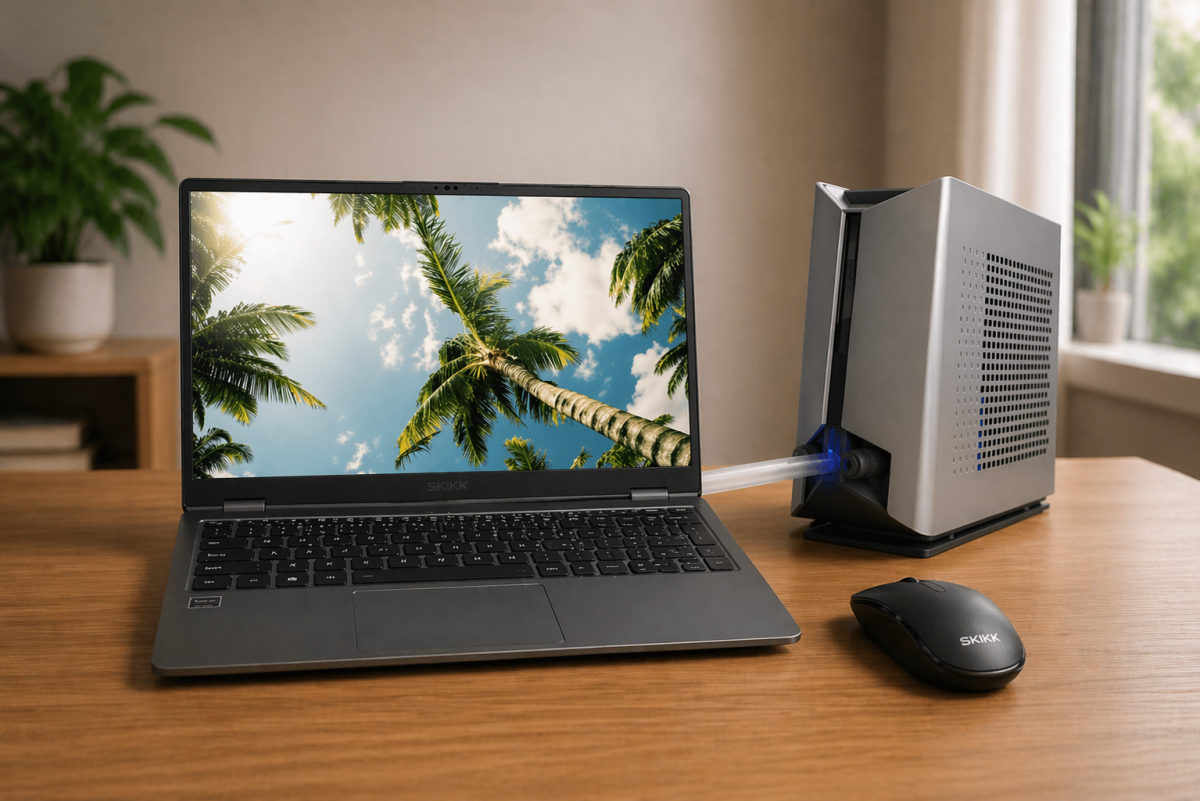
A laptop cooler sounds like the solution — but is it really?
Your laptop sounds like a vacuum cleaner and the bottom is so hot you could toast a sandwich on it. The obvious solution? A cooling pad with a couple of powerful fans underneath. Costs ten or twenty bucks, looks technical, and it feels like you're doing something about the problem.
Only: in practice, it's often like mopping the floor with the tap running. In this article, we explain why external coolers miss the mark, and how to really keep your laptop cool and quiet.
The barrier: plastic, metal and insulation
The biggest problem is simple. An external cooler blows air against the outside of your laptop. That housing — whether it's plastic or aluminum — acts as an insulation layer. The heat is generated inside, at the processor and graphics card. The cool air from the pad doesn't reach those components directly. You're essentially only cooling the packaging, while the engine continues to overheat.
The battle for airflow
Laptops are masterpieces of internal design. Manufacturers calculate precisely how air flows in through small vents and is pushed out again through cooling fins. Every millimeter counts.
A cooling pad can actually disrupt that carefully planned airflow. Imagine your laptop exhausts warm air through the bottom, but the cooling pad forcefully blows cold air against it. This creates a kind of heat traffic jam. The temperature rises instead of falling, forcing the laptop to slow itself down to prevent damage. This is called thermal throttling — and you'll notice it immediately through stuttering software and slow response times.
The real culprits: dust and wear
An external cooler addresses the symptom (a warm housing), but not the cause. The two biggest reasons for overheating are surprisingly simple:
- Dust accumulation — Over time, dust collects in the internal ventilation ports. This forms a kind of blanket that traps heat. No external fan can blow through that.
- Dried thermal paste — Between the chips and the cooling system is a conductive paste. After two to three years, this dries out, preventing heat from escaping the laptop. Compare it to a radiator with clogged pipes: blowing more air over it won't help either.
3 tips that actually work
Want to extend your hardware's lifespan and maintain speed? Forget the cooling pad and focus on these steps:
1. Use a hard, flat surface
Never use your laptop on a pillow, couch, or on your lap. This directly blocks the air intake. A simple laptop stand that keeps the bottom clear of the desk does more than any cooling pad. Bonus: it's also better for your posture.
2. Clean the vents
Use a can of compressed air to blow dust out of the ventilation openings. Available at any hardware store or electronics shop for a few euros. Do this every few months and you'll notice an immediate difference. Especially if you have pets — pet hair is the biggest enemy of laptop fans.
3. Check your processes
Sometimes the heat isn't physical, but digital. Open Task Manager (Windows: Ctrl+Shift+Esc) or Activity Monitor (Mac) and see which programs are unnecessarily consuming processing power. A stuck browser tab or forgotten background process can make your processor work hard. Close it and your fans often become much quieter immediately.
When a cooling pad does make sense
To be fair: there are situations where an external cooler does add some value. Working in a warm room without air conditioning, or have an older laptop whose internal cooling system isn't quite cutting it anymore? Then a cooling pad can provide just that bit of extra relief to prevent thermal throttling. It's no miracle cure, but as a temporary measure it can help.
Just make sure not every cooler fits every laptop. Check the size beforehand and look carefully at the connections included — some work via USB-A, others via USB-C, and with older laptops you might need an adapter. Having doubts? Contact our customer service, we're happy to help you think it through.
Why good internal cooling design makes the difference
The best cooling doesn't start outside the laptop, but inside it. A well-designed cooling system — think substantial heatpipes, sufficient cooling fins and fans positioned in the right places — ensures heat is quickly and efficiently dissipated. That's exactly the difference between a laptop that starts throttling after an hour and one that runs at full power for hours on end.
This is also why it pays to look beyond just the specs on paper when purchasing a laptop. A well-chosen laptop with a solid cooling system saves you frustration, costs, and a drawer full of useless accessories in the long run. Curious where people often go wrong? Also read our article about common mistakes when choosing a new laptop.
At SKIKK you can fully customize your laptop yourself. This means you're not stuck with the choices of a mass manufacturer, but choose the configuration that fits your usage. Heavy workloads? Then you configure more cooling capacity. Light usage? Then you keep it compact and quiet. Check out our laptops and build your ideal setup.